How to Keep a PC Cool While Gaming
Practical ways to keep a gaming PC cool: where to put the case, clearing dust, sensible fan direction, monitoring temperatures and settings that ease the load.
A gaming PC turns electricity into pictures and, inevitably, into heat. During a long session the graphics card and processor can run near their limits for hours, and the warm air has to go somewhere. When it cannot escape, fans spin up loudly, components slow themselves down to stay safe and the game may stutter. The good news is that most cooling problems have ordinary causes and ordinary fixes.
Signs your PC is running hot
- Fans that roar within a few minutes of starting a game and stay loud.
- Frame rates that start well and then sag after a while, which can point to thermal throttling.
- A case that feels noticeably hot to the touch, or warm air pooling around your legs.
- Unexpected shutdowns or restarts under load, which deserve attention quickly.
Any one of these alone is not proof of a problem, but together they suggest the machine is struggling to shed heat.
Start with where the case sits
Placement is free to change and often makes the biggest difference. A tower pushed into a closed desk cabinet, against a wall or onto thick carpet is breathing its own exhaust.
- Leave a hand's width of open space behind and beside the case, more if your desk allows.
- Raise it off carpet so bottom intakes are not blocked; a flat board or a low stand is enough.
- Keep it away from radiators, sunny windows and the warm exhaust of other devices.
- If it lives in a desk cubby, consider removing the door or moving the PC beside the desk instead.
Clear the dust regularly
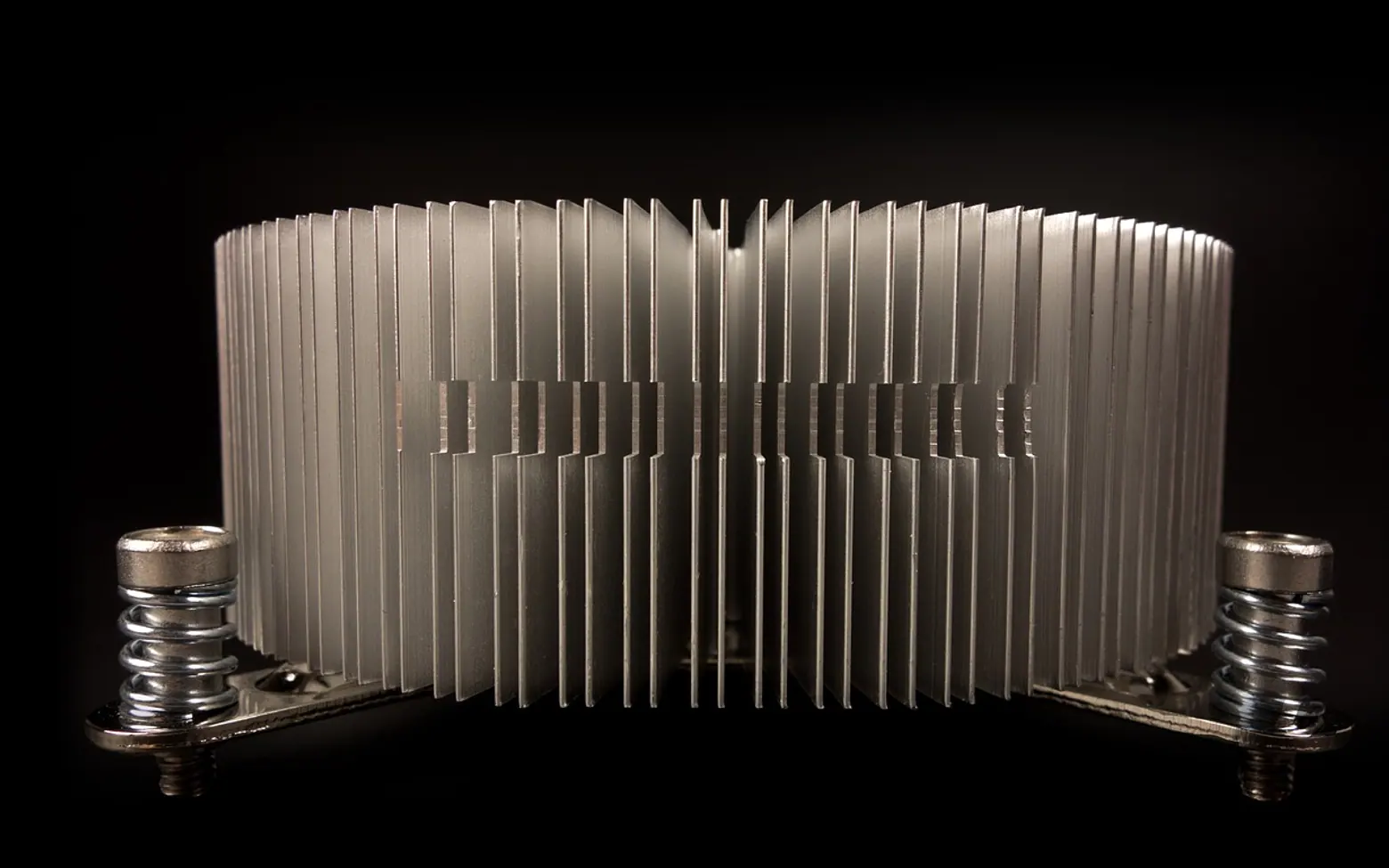
Dust is the slow enemy of every air-cooled computer. It clogs filters, coats heatsink fins and makes fans work harder for the same airflow. Shut the PC down, switch it off at the wall and unplug it before you open anything.
- Pull out and rinse or brush any removable dust filters, letting them dry fully before refitting.
- Use short bursts of compressed air on heatsinks and fans, holding fan blades still so they do not over-spin.
- Work in a well-ventilated spot, ideally outdoors, so the dust does not settle straight back in.
How often depends on your home: pets, carpets and open windows all mean more frequent cleaning. Checking the filters every couple of months is a reasonable habit.
Get the airflow pointing one way
Inside the case, air should follow a clear path: cool air in at the front or bottom, warm air out at the back or top. Fans have small arrows on the frame showing which way they blow. A common mistake is two fans fighting each other, or every fan exhausting with nothing bringing fresh air in.
Tidy cables help too. A thick bundle hanging in front of the intake fans blocks more air than you might expect. Tucking cables behind the motherboard tray, where the case allows it, keeps the path open.
Watch the numbers, not just the noise
Free monitoring tools and the overlay built into many graphics drivers can display processor and graphics card temperatures while you play. Every chip has its own safe range, so check the manufacturer's specifications for your exact model rather than relying on a figure from a forum. What you are looking for is the pattern: steady readings within spec are fine, while temperatures that keep climbing during a session suggest airflow is not keeping up.
Settings that reduce the load
Sometimes the easiest way to cut heat is to ask the hardware to do less work.
- Cap the frame rate near your monitor's refresh rate. Rendering frames your screen cannot show only produces heat.
- Use upscaling on demanding titles; our explainer on DLSS and similar upscalers shows how rendering fewer pixels lightens the job.
- Lower the heaviest effects, such as ray-traced lighting or very high shadow quality, if a game pushes temperatures up quickly.
- Adjust the fan curve in the motherboard or graphics software so fans ramp earlier and more gently instead of jumping to full speed.
When to look deeper
If a clean, well-placed PC still runs hot, the cooler itself may need attention. Thermal paste between the processor and its cooler dries out over the years, and a fan with worn bearings may spin slower than it should. These jobs are manageable for confident builders following the manufacturer's instructions, and a reputable repair shop can handle them for everyone else. A laptop is a different story; if you are weighing the two kinds of machine, our list of reasons to switch to a laptop covers the wider trade-offs.